Orbe Docs Tiếng Việt Get started

Blocks & Actions

Every action a workflow can take, with its fields and an example. This is the complete set: a workflow is built only from these blocks, which is what keeps it safe to share and run.

Two things true of every action here: it runs through Orbe's internal channel, so there is no automation trace (no CDP, no navigator.webdriver, no debug port); and secret fields — like a 2FA seed — take a vault reference, so the secret itself stays in your vault. A workflow is data built from this fixed set, so one you import or an assistant drafts can't do anything outside it.

This page is generated from the live engine, so it always matches what Orbe actually runs. Every block is platform-neutral.

Common properties

Every block, whatever it does, also carries these:

wait afterrange
A min–max delay in milliseconds after the block, so timing varies like a person's rather than firing at a fixed beat. This is human jitter, on by default.
on errorchoice
What to do if the block fails: screenshot_and_stop, stop, or continue. Set per block to override the run's default.
notetext
A comment for yourself — it doesn't run.
Where a block needs a secret — like the 2FA seed in 2FA code — use a vault reference, so the secret stays in your vault. A value typed straight into an ordinary field is saved in the workflow as written. When you save a flow, Orbe offers to replace values that look like passwords or keys with placeholders. Check the file before you share it.

Navigate

Navigate

Open profile open

Open the profile and connect the control channel. Runs the pre-flight discipline checks.

urlurl
a URL
{"open": {"url": "https://example.com"}}
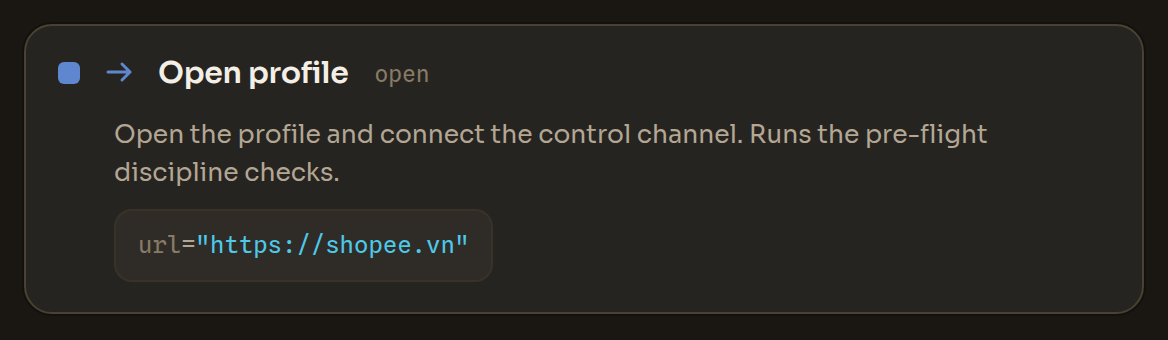
The Open profile block in the Workflow Editor
Open profile in the Workflow Editor
Navigate

Go to URL goto

Navigate the current tab to a URL.

urlurl required
a URL
{"goto": {"url": "https://example.com/login"}}
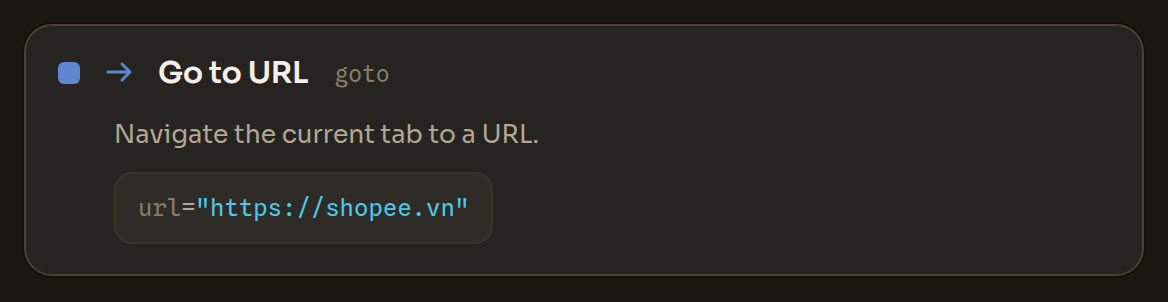
The Go to URL block in the Workflow Editor
Go to URL in the Workflow Editor
Navigate

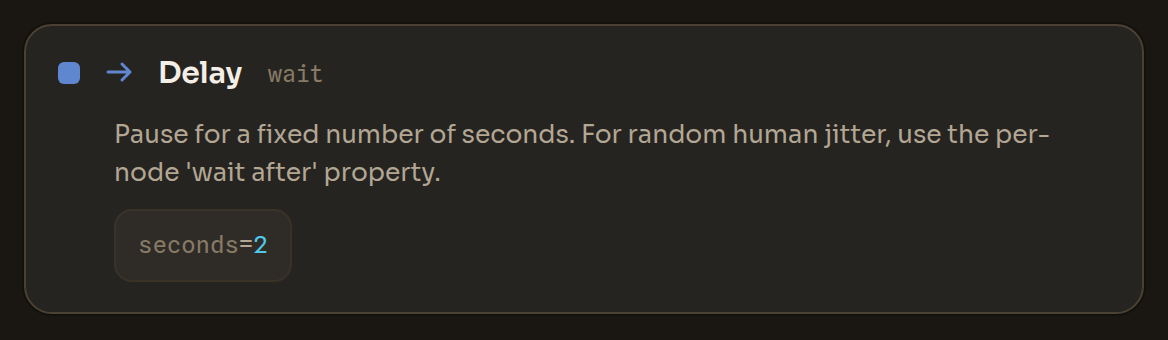
Delay wait

Pause for a fixed number of seconds. For random human jitter, use the per-node 'wait after' property.

secondsnumber required
a number
{"wait": {"seconds": 2}}
The Delay block in the Workflow Editor
Delay in the Workflow Editor
Navigate

Wait for element wait_for

Wait until an element carrying the given text appears (or time out). Use an element selector to wait for a precise element (e.g. inside a specific container).

texttext
text — may include {{variables}} — text OR an element selector
chonobject
object — element selector — wait for a precise element: aria label, role, form field name, text, scope, nth and a match mode (contains/exact) — e.g. a button inside a specific container
timeoutnumber
a number
{"wait_for": {"text": "Sign in", "timeout": 15}}
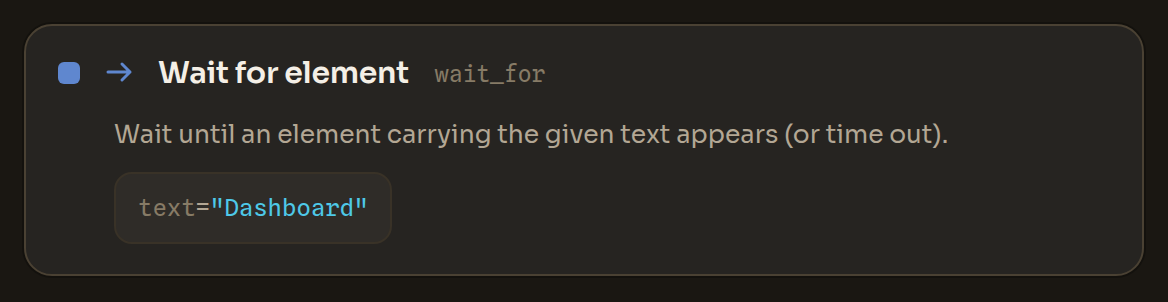
The Wait for element block in the Workflow Editor
Wait for element in the Workflow Editor
Navigate

Wait for page address wait_url

Wait until the page address contains some text, or until it changes (e.g. after a login redirect). Optionally store the new address.

containstext
text — may include {{variables}} — wait until the address contains this; empty = wait until it changes
fromtext
text — may include {{variables}} — the address it must change from (default: the address when this step starts)
timeoutnumber
a number — seconds, default 15
intovar
a variable name
{"wait_url": {"contains": "/dashboard", "timeout": 20, "into": "landed"}}
The Wait for page address block in the Workflow Editor
Wait for page address in the Workflow Editor
Navigate

New tab new_tab

Open a new tab (optionally at a URL) and optionally store its id. Runs through the internal channel — no debug port.

urlurl
a URL
intovar
a variable name — store the new tab id
{"new_tab": {"url": "https://example.com", "into": "tab2"}}
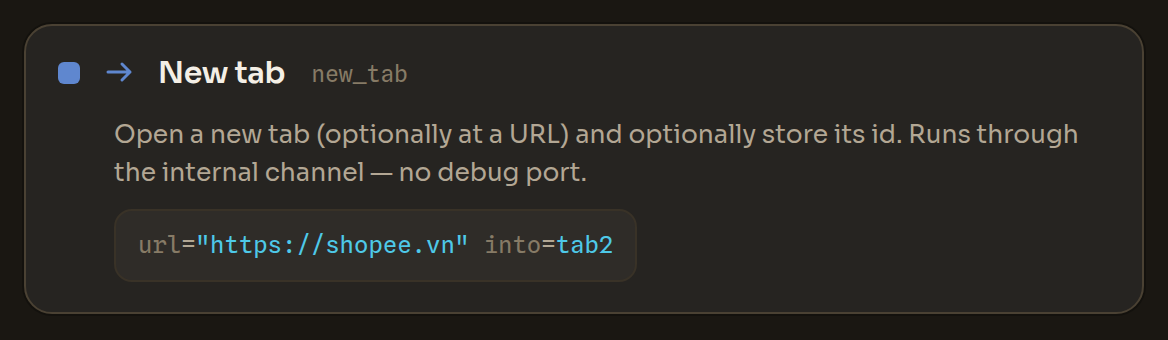
The New tab block in the Workflow Editor
New tab in the Workflow Editor
Navigate

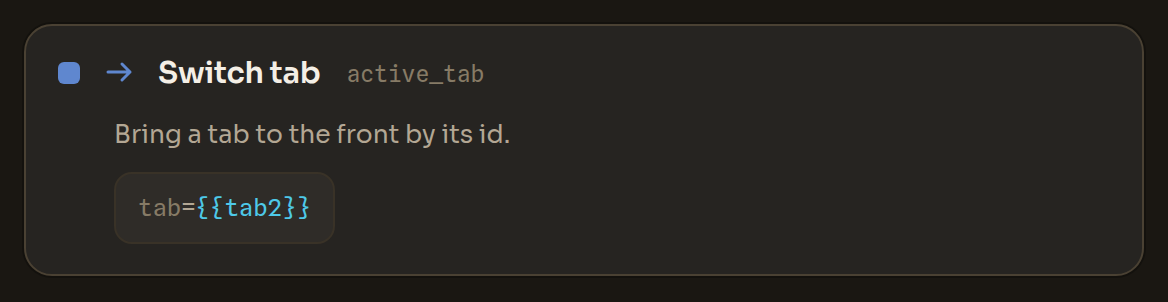
Switch tab active_tab

Bring a tab to the front by its id — or by what it shows: the start of its address or text in its title. Stops if several tabs match and no nth is given.

tabtext
text — may include {{variables}} — tab id (or {{var}}); or leave empty and match below
url_starts_withtext
text — may include {{variables}} — switch to the tab whose address starts with this
titletext
text — may include {{variables}} — switch to the tab whose title contains this
nthnumber
a number — 0-based, when several tabs match
intovar
a variable name — store the id of the tab switched to
{"active_tab": {"tab": "{{tab2}}"}}
The Switch tab block in the Workflow Editor
Switch tab in the Workflow Editor
Navigate

Close tab close_tab

Close a tab by id, or the current tab when left empty.

tabtext
text — may include {{variables}} — tab id; empty → current tab
{"close_tab": {}}
The Close tab block in the Workflow Editor
Close tab in the Workflow Editor
Navigate

List tabs tabs

Store the ids of all open tabs, in the order they appear, as a list variable — loop over it with Switch tab, or count it with Count list items.

intovar required
a variable name — stores the list of tab ids, in tab order
{"tabs": {"into": "tab_ids"}}
The List tabs block in the Workflow Editor
List tabs in the Workflow Editor
Navigate

Wait for any of wait_any

Wait until the first of several texts appears on the page (e.g. a success message, an error, or a captcha) and store which one matched — so the next steps can branch on the outcome at a single wait point.

anylist required
a list of values — list of texts; continues on the first that appears
timeoutnumber
a number
intovar
a variable name — stores which one matched
{"wait_any": {"any": ["Welcome", "Wrong password", "Verify"], "into": "seen"}}
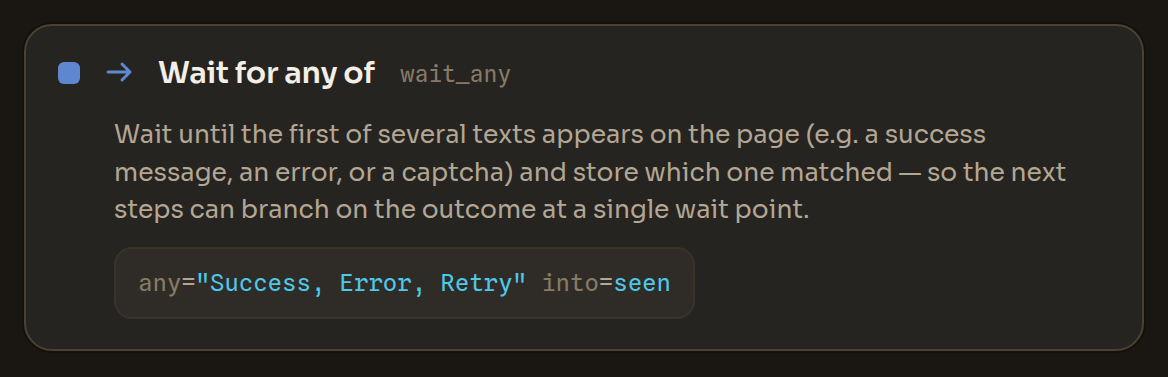
The Wait for any of block in the Workflow Editor
Wait for any of in the Workflow Editor
Navigate

Go back back

Navigate back one page in history.

{"back": {}}

The Go back block in the Workflow Editor
Go back in the Workflow Editor
Navigate

Reload reload

Reload the current page.

{"reload": {}}

The Reload block in the Workflow Editor
Reload in the Workflow Editor
Navigate

Close close

Close the profile's browser.

{"close": {}}

The Close block in the Workflow Editor
Close in the Workflow Editor

Act

Act

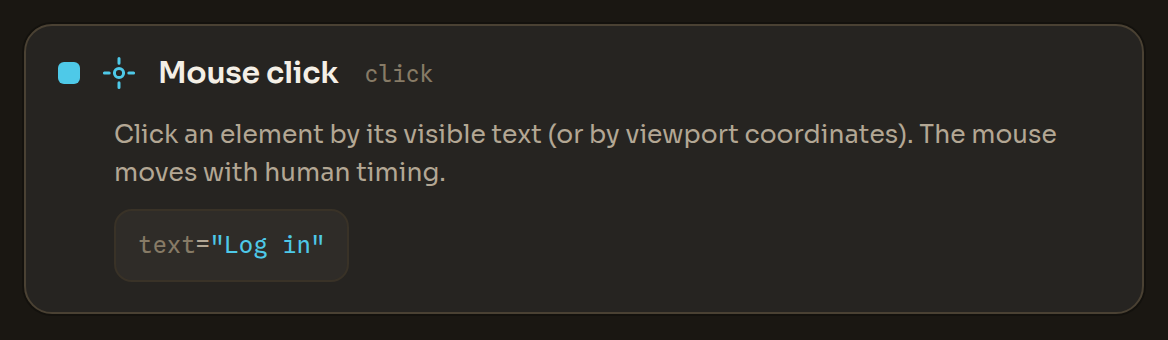
Mouse click click

Click an element by its visible text (or by viewport coordinates). The mouse moves with human timing. When several elements share the same text, add an element selector (nth index or scope container) to pick exactly one — if the choice is still ambiguous the run pauses instead of clicking the wrong element.

texttext
text — may include {{variables}} — click by visible text
xnumber
a number
ynumber
a number — give text, the x,y pair, OR an element selector
buttonchoice
one of a set of options — default left; right opens the page's context menu (left, right, middle)
countnumber
a number — 1, 2 or 3 clicks (2 = double-click); default 1
chonobject
object — element selector: aria label, role, form field name, text, scope, nth and a match mode (contains/exact) — prefer a stable attribute (aria label/role) when available; scope (container text) and nth (index) narrow the rest; if still ambiguous the run PAUSES instead of clicking wrong
{"click": {"text": "Sign in"}}
The Mouse click block in the Workflow Editor
Mouse click in the Workflow Editor
Act

Type text type

Type text into a field with human timing; optionally press Enter. Click the field (or set 'into') first.

intotext
text — may include {{variables}} — field label to focus first
chonobject
object — element selector — focus the PRECISE field among many (aria label, role, form field name, text, scope, nth, match mode); prefer a stable attribute; if still ambiguous the run pauses
texttext required
text — may include {{variables}} — the content to type
enterbool
true / false
{"type": {"into": "Email", "text": "{{email}}", "enter": false}}
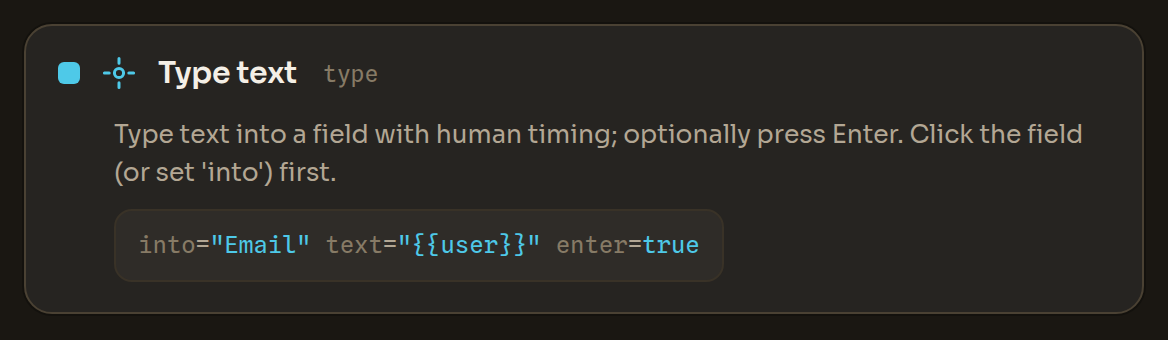
The Type text block in the Workflow Editor
Type text in the Workflow Editor
Act

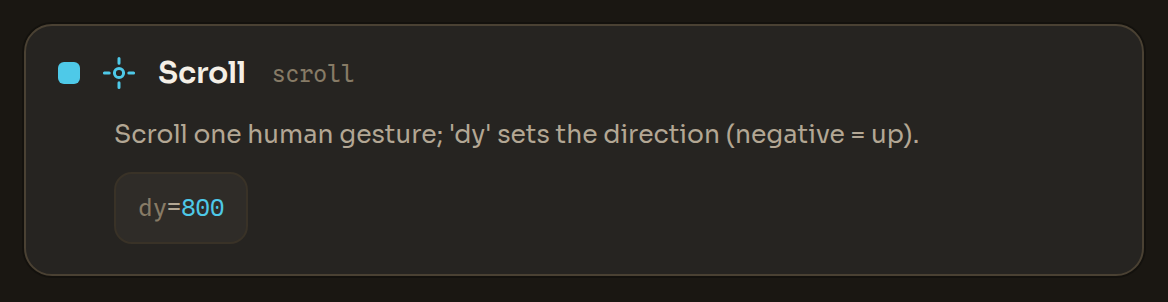
Scroll scroll

Scroll one human gesture; 'dy' sets the direction (negative = up).

dynumber required
a number
xnumber
a number
ynumber
a number
{"scroll": {"dy": 600}}
The Scroll block in the Workflow Editor
Scroll in the Workflow Editor
Act

Scroll until scroll_until

Scroll down with human gestures until the given text appears or the page bottom is reached.

texttext required
text — may include {{variables}}
max_gesturesnumber
a number
{"scroll_until": {"text": "Load more"}}
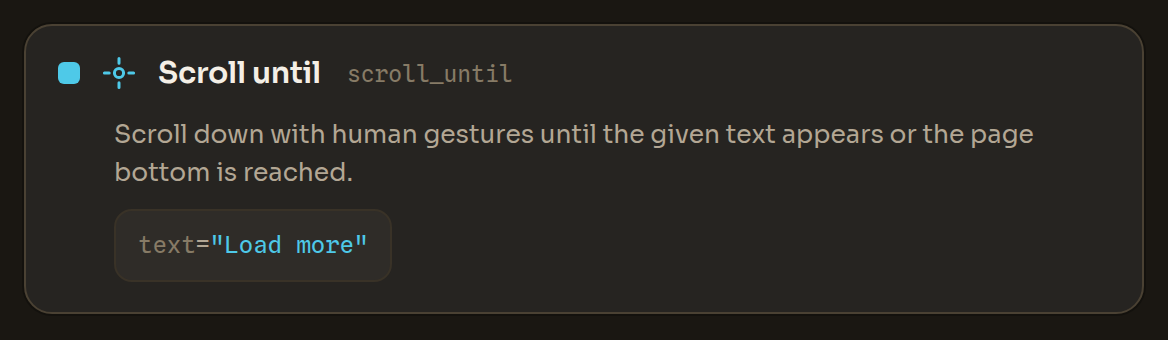
The Scroll until block in the Workflow Editor
Scroll until in the Workflow Editor
Act

Random scroll random_scroll

Scroll the page by random amounts, with short pauses, the way a person browses.

timesnumber
a number — 1 to 20, default 1
directionchoice
one of a set of options (down, up, both)
{"random_scroll": {"times": 3, "direction": "down"}}
The Random scroll block in the Workflow Editor
Random scroll in the Workflow Editor
Act

Press keys hotkey

Press a key or an editing shortcut in the page (copy, paste, select all, undo, arrows, Enter…). Only editing shortcuts are allowed; browser and system shortcuts are refused.

Copy, cut and paste shortcuts (Ctrl+C, Ctrl+X, Ctrl+V, Ctrl+Insert, Shift+Insert, Shift+Delete) run only in trusted workflows — imported or AI-written flows ask your permission first (see Allowing sensitive steps).

keystext required
text — may include {{variables}} — a key or an editing shortcut, e.g. Ctrl+A, Ctrl+C, Ctrl+V, Shift+Tab, Enter
{"hotkey": {"keys": "Ctrl+A"}}
The Press keys block in the Workflow Editor
Press keys in the Workflow Editor

Read

Read

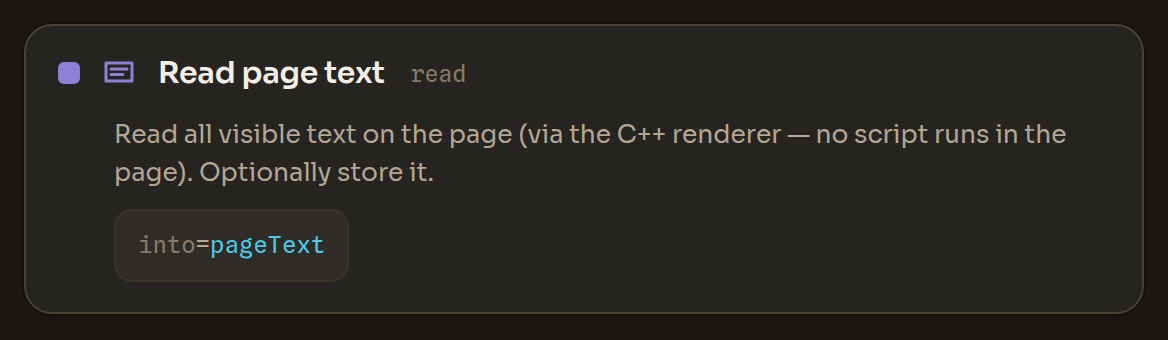
Read page text read

Read all visible text on the page (via the C++ renderer — no script runs in the page). Optionally store it.

intovar
a variable name
{"read": {"into": "page_text"}}
The Read page text block in the Workflow Editor
Read page text in the Workflow Editor
Read

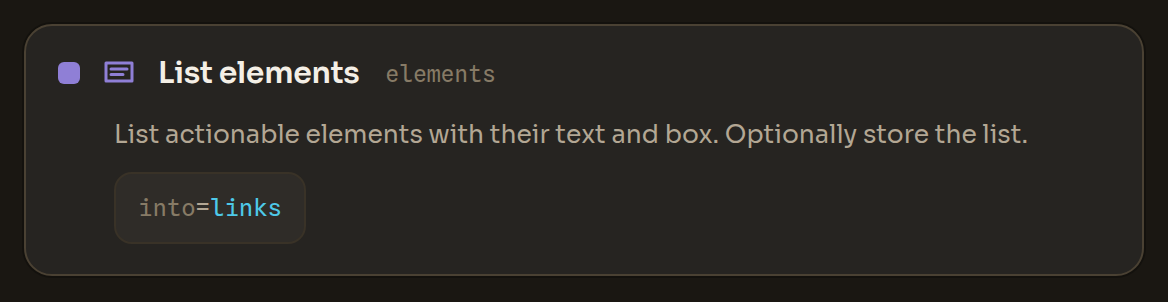
List elements elements

List actionable elements with their text and box. Optionally store the list.

intovar
a variable name
{"elements": {"into": "buttons"}}
The List elements block in the Workflow Editor
List elements in the Workflow Editor
Read

Get element attribute get_attribute

Read one property of a single element — its text, accessible label, role, form field name, placeholder, whether it is checked or enabled, link address (href), field type, field value, or image alt text — into a variable. Password and other protected fields never return their value. Stops if several elements match; add nth or scope to pick one.

texttext
text — may include {{variables}} — visible text OR an element selector
chonobject
object — element selector: aria label, role, form field name, text, scope, nth and a match mode (contains/exact)
attrchoice required
one of a set of options (text, label, role, name, placeholder, checked, enabled, href, input_type, value, alt)
intovar required
a variable name
{"get_attribute": {"text": "Learn more", "attr": "href", "into": "link"}}
The Get element attribute block in the Workflow Editor
Get element attribute in the Workflow Editor
Read

Count elements count_elements

Count the elements on the page that match the text or element selector and store the number (0 when none match).

texttext
text — may include {{variables}} — visible text OR an element selector
chonobject
object — element selector: aria label, role, form field name, text, scope, nth and a match mode (contains/exact)
intovar required
a variable name
{"count_elements": {"text": "Add to cart", "into": "n"}}
The Count elements block in the Workflow Editor
Count elements in the Workflow Editor
Read

Extract list extract

Collect a list from many matching elements in one step — e.g. every product name on the page — filtered by visible text and stored in a variable for later steps to loop over. Set field to 'link' to collect link addresses instead of text.

matchtext
text — may include {{variables}} — keep only elements whose text contains this ({{var}} ok); empty = all
fieldchoice
one of a set of options — what to collect (default text); 'link' collects link addresses (text, link)
intovar required
a variable name — stores the list
{"extract": {"field": "text", "match": "Product", "into": "product_names"}}
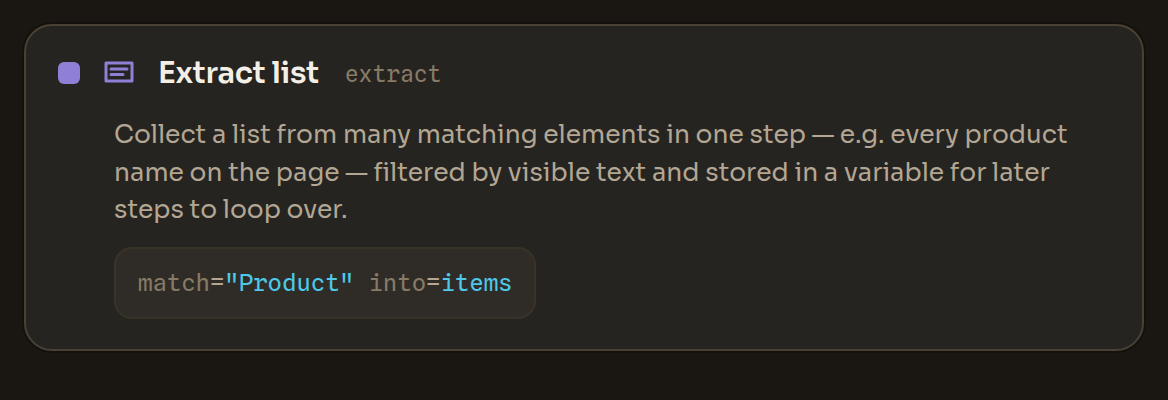
The Extract list block in the Workflow Editor
Extract list in the Workflow Editor
Read

Screenshot screenshot

Capture the page through the compositor (no canvas noise).

pathtext
text — may include {{variables}}
{"screenshot": {"path": "after-login.png"}}
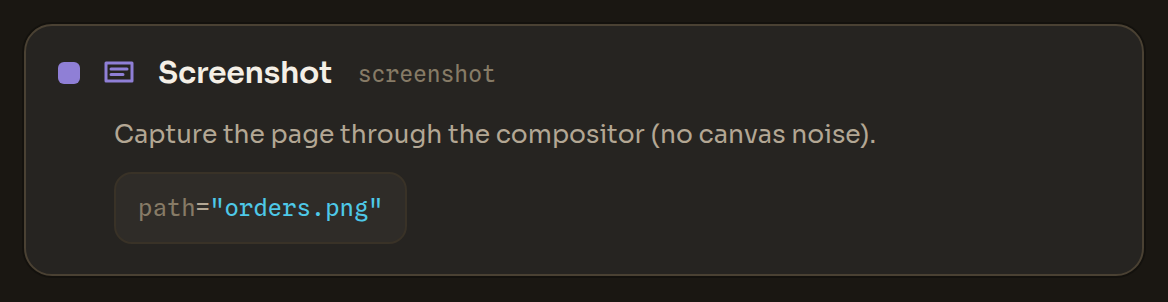
The Screenshot block in the Workflow Editor
Screenshot in the Workflow Editor
Read

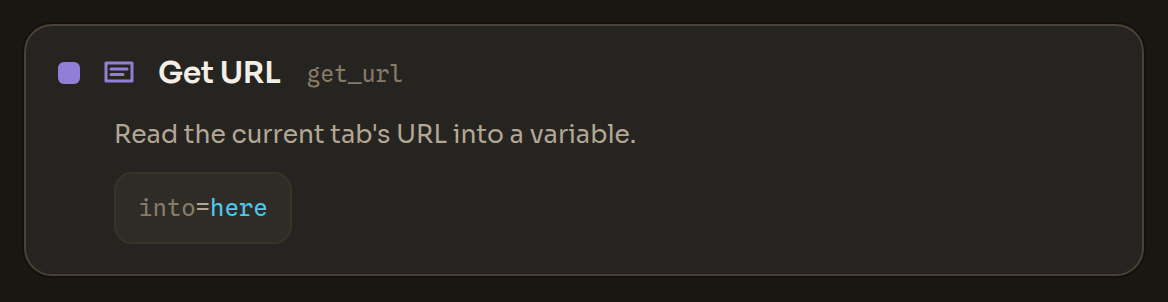
Get URL get_url

Read the current tab's URL into a variable.

intovar required
a variable name
{"get_url": {"into": "current_url"}}
The Get URL block in the Workflow Editor
Get URL in the Workflow Editor

Data

Data

Set variable set

Set a variable to a value (supports {{other}} substitution).

namevar required
a variable name
valuetext required
text — may include {{variables}}
{"set": {"name": "username", "value": "alice"}}
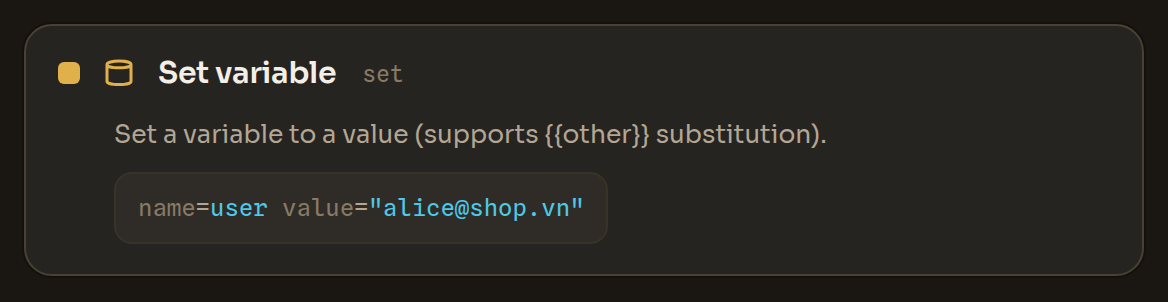
The Set variable block in the Workflow Editor
Set variable in the Workflow Editor
Data

Regex extract regex

Extract the first regular-expression match (or a capture group) from a text into a variable.

In an untrusted workflow — for example a script imported from another tool — this step stops before running its pattern until you allow it (see Allowing sensitive steps).

fromtext required
text — may include {{variables}} — source text ({{var}} ok)
patterntext required
text — may include {{variables}}
intovar required
a variable name
groupnumber
a number — capture group index (default 0 = whole match)
{"regex": {"from": "{{page_text}}", "pattern": "\\d{6}", "into": "code"}}
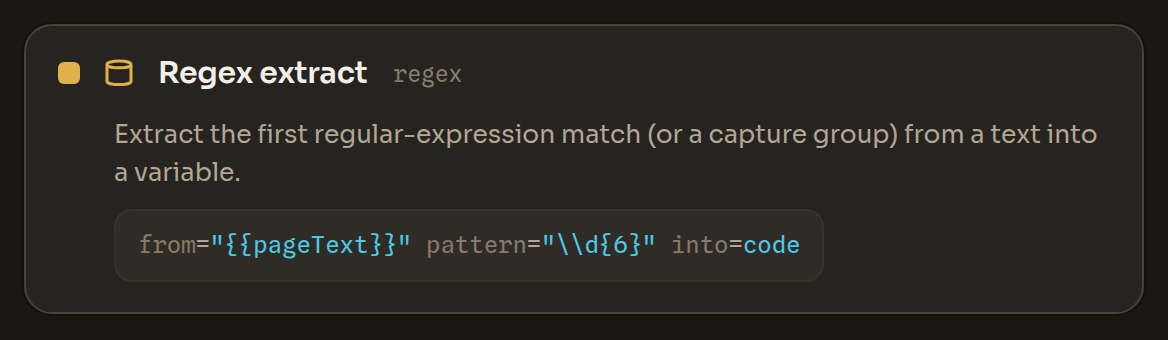
The Regex extract block in the Workflow Editor
Regex extract in the Workflow Editor
Data

Split text split

Split a text on a separator; store the whole list, or one part by index.

fromtext required
text — may include {{variables}}
septext required
text — may include {{variables}}
intovar required
a variable name
indexnumber
a number — one part by index; omit → store the whole list
{"split": {"from": "{{row}}", "sep": ",", "into": "cell", "index": 0}}
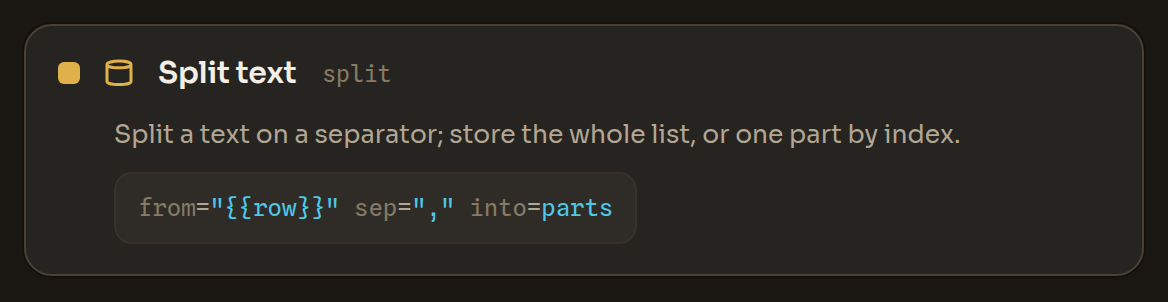
The Split text block in the Workflow Editor
Split text in the Workflow Editor
Data

Math math

Compute a typed arithmetic operation (add/sub/mul/div/mod/pow) on two numbers into a variable — no formula evaluation.

opchoice required
one of a set of options (add, sub, mul, div, mod, pow)
atext required
text — may include {{variables}} — number or {{var}}
btext required
text — may include {{variables}}
intovar required
a variable name
{"math": {"op": "add", "a": "{{count}}", "b": "1", "into": "count"}}
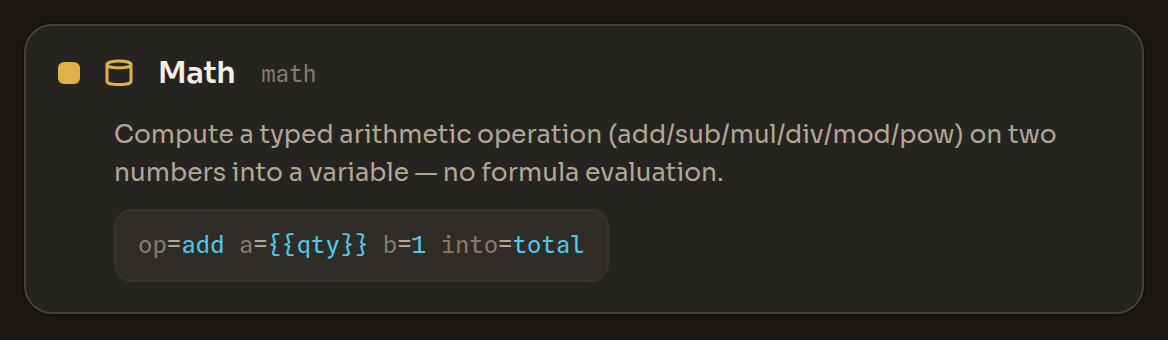
The Math block in the Workflow Editor
Math in the Workflow Editor
Data

Random number random_number

Pick a random whole number between min and max (inclusive) into a variable.

minnumber required
a number
maxnumber required
a number
intovar required
a variable name
{"random_number": {"min": 2, "max": 8, "into": "pause"}}
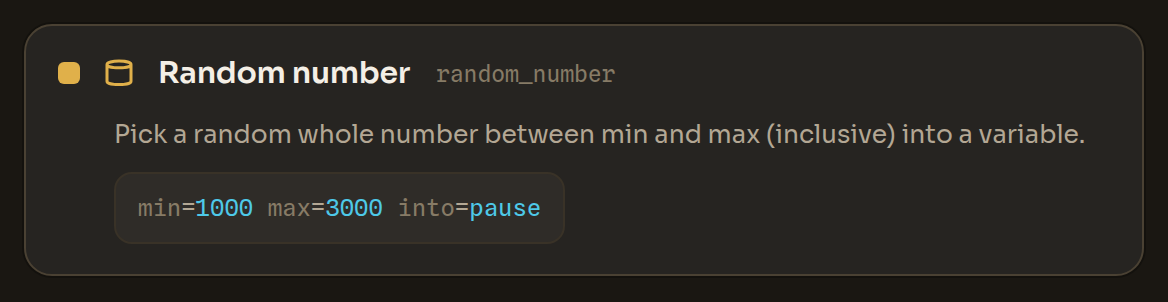
The Random number block in the Workflow Editor
Random number in the Workflow Editor
Data

Random text random_text

Make a random string of the length you choose (letters, digits, both, or hex) and store it in a variable.

lengthnumber required
a number — 1 to 1000 characters
charschoice
one of a set of options — default alnum (letters + digits) (alnum, letters, digits, hex)
intovar required
a variable name
{"random_text": {"length": 12, "chars": "alnum", "into": "suffix"}}
The Random text block in the Workflow Editor
Random text in the Workflow Editor
Data

Read JSON read_json

Read a value out of JSON text you already have in the workflow (for example a response stored in a variable), following a path like data.items.0.name. It does not read files.

fromtext required
text — may include {{variables}} — JSON text or a {{variable}} holding it
pathtext
text — may include {{variables}} — e.g. data.items.0.name; empty = all
defaulttext
text — may include {{variables}} — used when the path isn't found
intovar required
a variable name
{"read_json": {"from": "{{response}}", "path": "data.items.0.name", "default": "unknown", "into": "name"}}
The Read JSON block in the Workflow Editor
Read JSON in the Workflow Editor
Data

Increase variable increment

Add to a number variable (by 1 unless you set another amount). An empty or new variable counts as 0.

namevar required
a variable name — a number variable (starts at 0 if empty)
bynumber
a number — default 1; a number or {{var}}
{"increment": {"name": "count", "by": 1}}
The Increase variable block in the Workflow Editor
Increase variable in the Workflow Editor
Data

Decrease variable decrement

Subtract from a number variable (by 1 unless you set another amount). An empty or new variable counts as 0.

namevar required
a variable name — a number variable (starts at 0 if empty)
bynumber
a number — default 1; a number or {{var}}
{"decrement": {"name": "count", "by": 1}}
The Decrease variable block in the Workflow Editor
Decrease variable in the Workflow Editor
Data

Count list items count_items

Store how many items a list variable holds (0 when it is empty).

fromvar required
a variable name — a list variable
intovar required
a variable name
{"count_items": {"from": "tab_ids", "into": "tab_count"}}
The Count list items block in the Workflow Editor
Count list items in the Workflow Editor
Data

Transform list transform

Transform a list variable — sort, reverse, de-duplicate, slice, join into a string, or count its length.

opchoice required
one of a set of options (sort, reverse, unique, slice, join, length)
fromvar required
a variable name — a list variable
intovar required
a variable name
septext
text — may include {{variables}} — for join
startnumber
a number — for slice
endnumber
a number — for slice
numericbool
true / false — sort as numbers
descbool
true / false — sort descending
{"transform": {"op": "unique", "from": "emails", "into": "unique_emails"}}
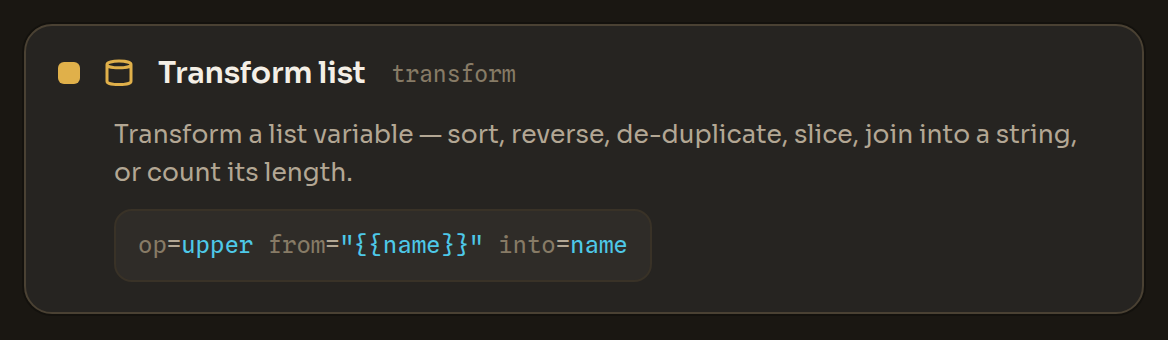
The Transform list block in the Workflow Editor
Transform list in the Workflow Editor
Data

Ask a person prompt

Pause and ask the person a question (for a captcha answer or a one-time code), then store their reply and continue.

messagetext required
text — may include {{variables}}
intovar required
a variable name
{"prompt": {"message": "Enter the code from the SMS", "into": "code"}}
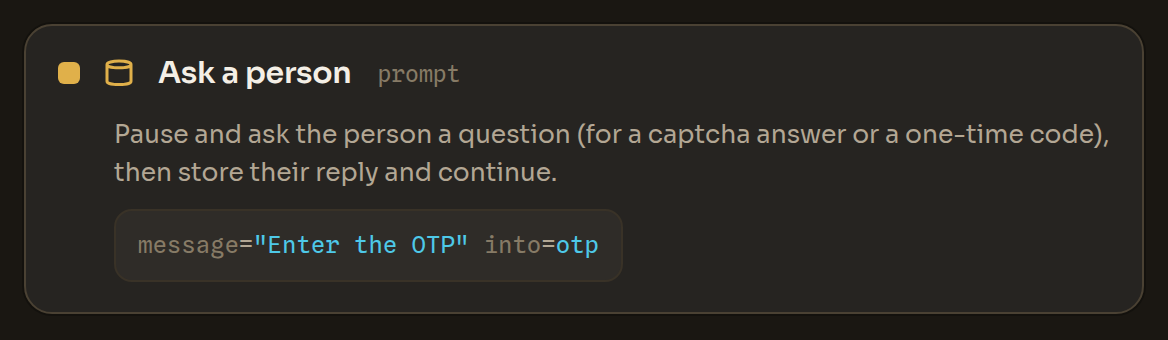
The Ask a person block in the Workflow Editor
Ask a person in the Workflow Editor
Data

Save state state_set

Save a value under a key that persists across runs — so a multi-day job can remember its progress.

keytext required
text — may include {{variables}}
valuetext required
text — may include {{variables}}
{"state_set": {"key": "last_row", "value": "{{i}}"}}
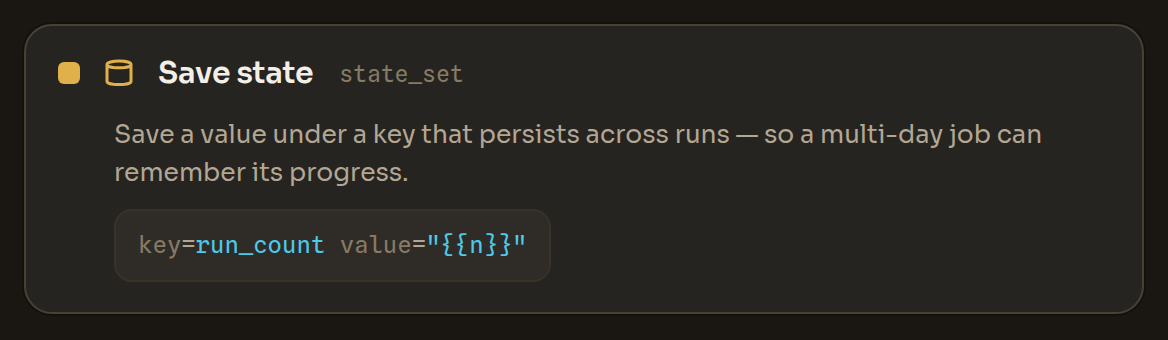
The Save state block in the Workflow Editor
Save state in the Workflow Editor
Data

Load state state_get

Load a value saved earlier by its key (with an optional default when nothing is stored yet).

keytext required
text — may include {{variables}}
intovar required
a variable name
defaulttext
text — may include {{variables}}
{"state_get": {"key": "last_row", "into": "start", "default": "0"}}
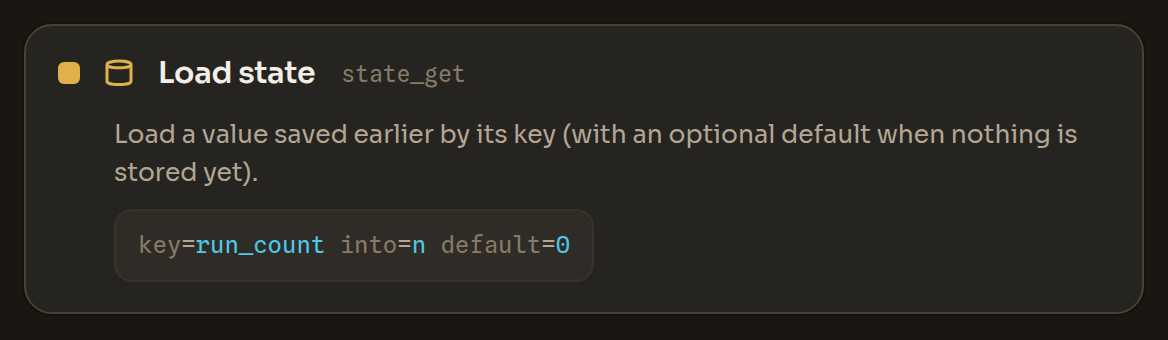
The Load state block in the Workflow Editor
Load state in the Workflow Editor
Data

Get cookies cookies

Read the cookies for a URL through the browser-process cookie store (not CDP — no debug port an attacker could read). Optionally store the list.

urlurl
a URL
intovar
a variable name
{"cookies": {"url": "https://example.com", "into": "jar"}}
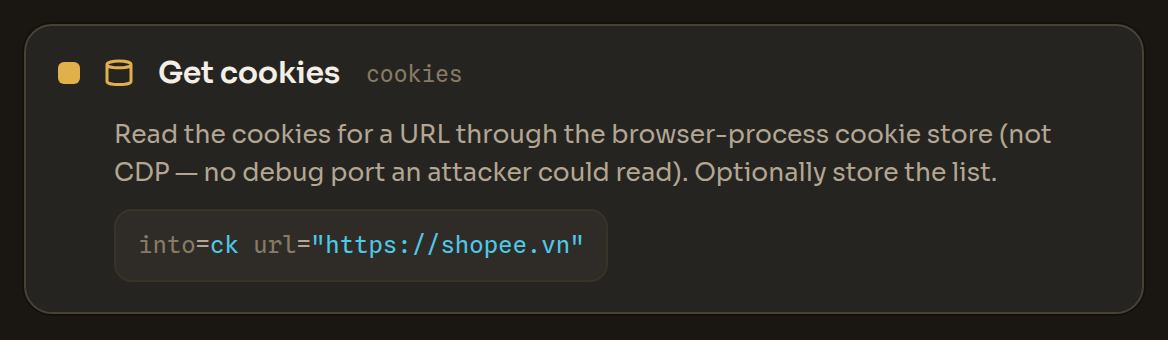
The Get cookies block in the Workflow Editor
Get cookies in the Workflow Editor
Data

Clear cookies clear_cookies

Delete cookies for a URL (optionally one name). Optionally store how many were removed.

urlurl
a URL
nametext
text — may include {{variables}}
intovar
a variable name — store the deleted count
{"clear_cookies": {"url": "https://example.com"}}
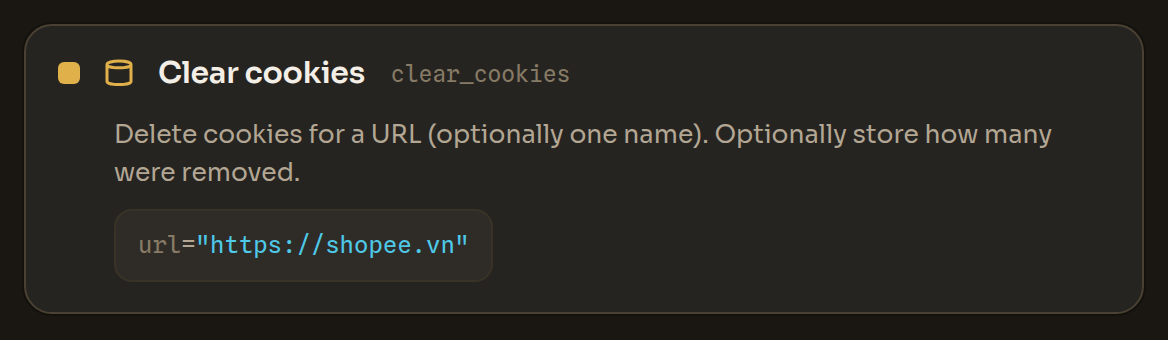
The Clear cookies block in the Workflow Editor
Clear cookies in the Workflow Editor

Control

Control

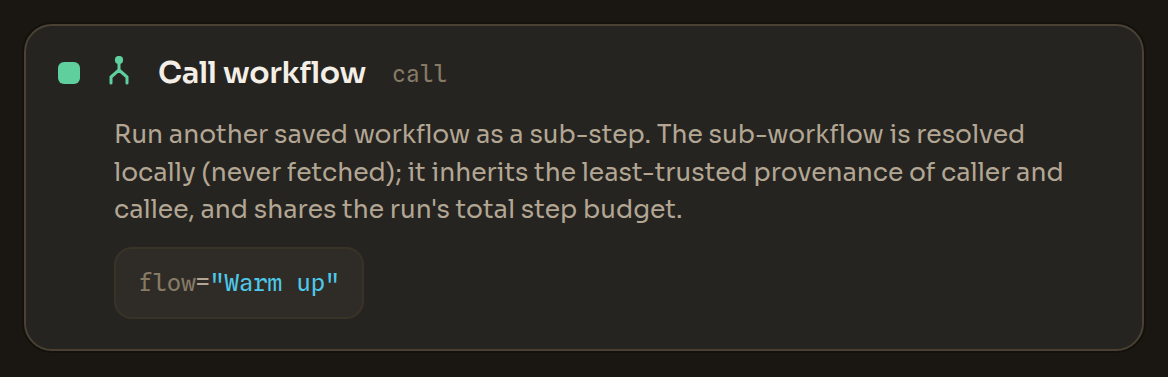
Call workflow call

Run another saved workflow as a sub-step. The sub-workflow is resolved locally (never fetched); it inherits the least-trusted provenance of caller and callee, and shares the run's total step budget.

flowflow_ref required
a saved workflow (resolved locally, never fetched) — id of a LOCAL saved workflow — no URL/path (never fetched)
{"call": {"flow": "sign-in"}}
The Call workflow block in the Workflow Editor
Call workflow in the Workflow Editor
Control · control

If if

Run the 'then' steps when a condition holds, else the 'else' steps.

condchoice required
one of a set of options — the chosen key holds the condition value in params (text_present, element_present, var_equals)
{"if": {"text_present": "Verify"}, "then": [ … ], "else": [ … ]}
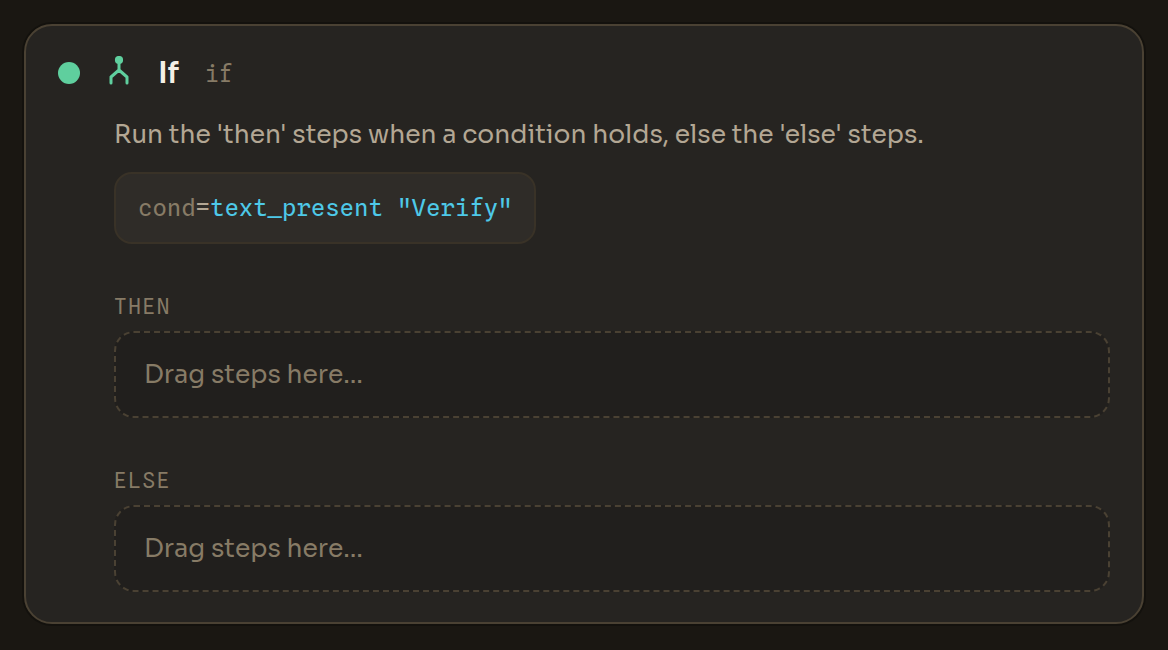
The If block in the Workflow Editor
If in the Workflow Editor
Control · control

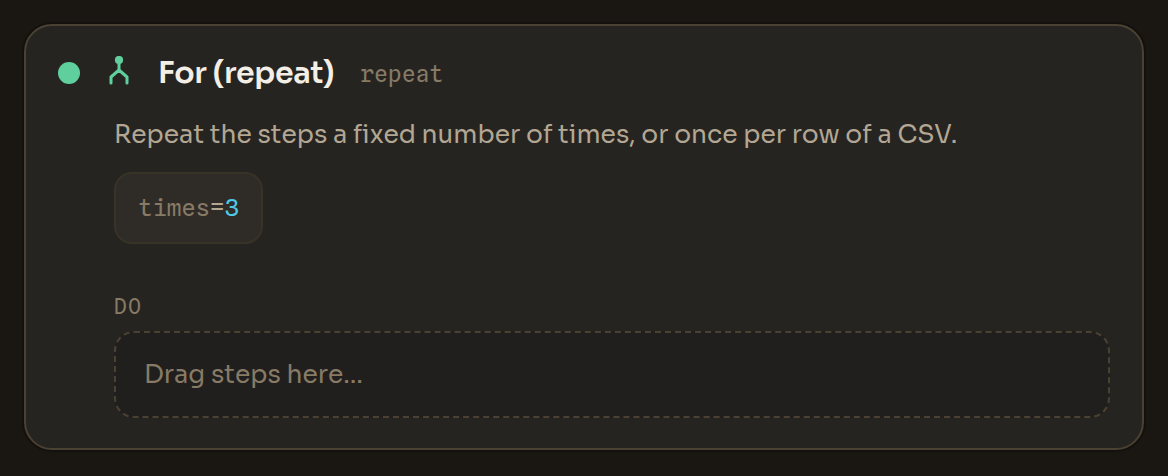
For (repeat) repeat

Repeat the steps a fixed number of times, once per row of a CSV, or once for each item of a list variable. In each pass {{item}} (or the name you choose) holds the current item; an item that is itself a list or object can be read further with Read JSON.

modechoice required
one of a set of options (times, for_each_row, for_each_item)
timesnumber
a number
for_each_itemvar
a variable name — a list variable (e.g. from Extract list, List tabs or Read JSON)
asvar
a variable name — name for the current item (default item)
index_asvar
a variable name — name for its position, from 0
{"repeat": {"times": 3}, "do": [ … ]}
The For (repeat) block in the Workflow Editor
For (repeat) in the Workflow Editor
Control · control

Retry retry

Run the steps, retrying on error up to a limit.

timesnumber
a number
backoffnumber
a number
{"retry": {"times": 3, "backoff": 2}, "do": [ … ]}
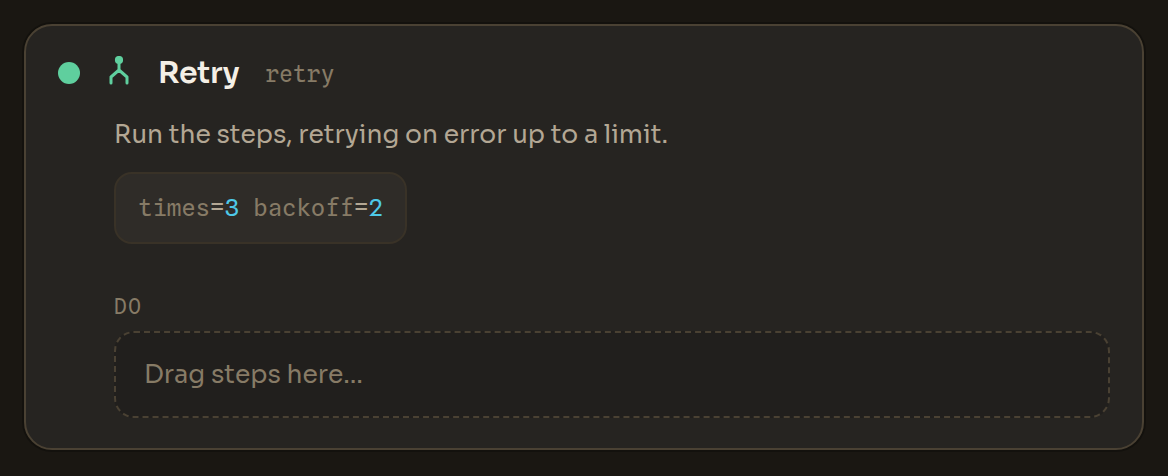
The Retry block in the Workflow Editor
Retry in the Workflow Editor
Control · control

Try / on error try

Run the 'do' steps; if any of them fails, run the 'fallback' steps instead (per-block error handling, e.g. a backup selector).

{"try": {}, "do": [ … ], "fallback": [ … ]}
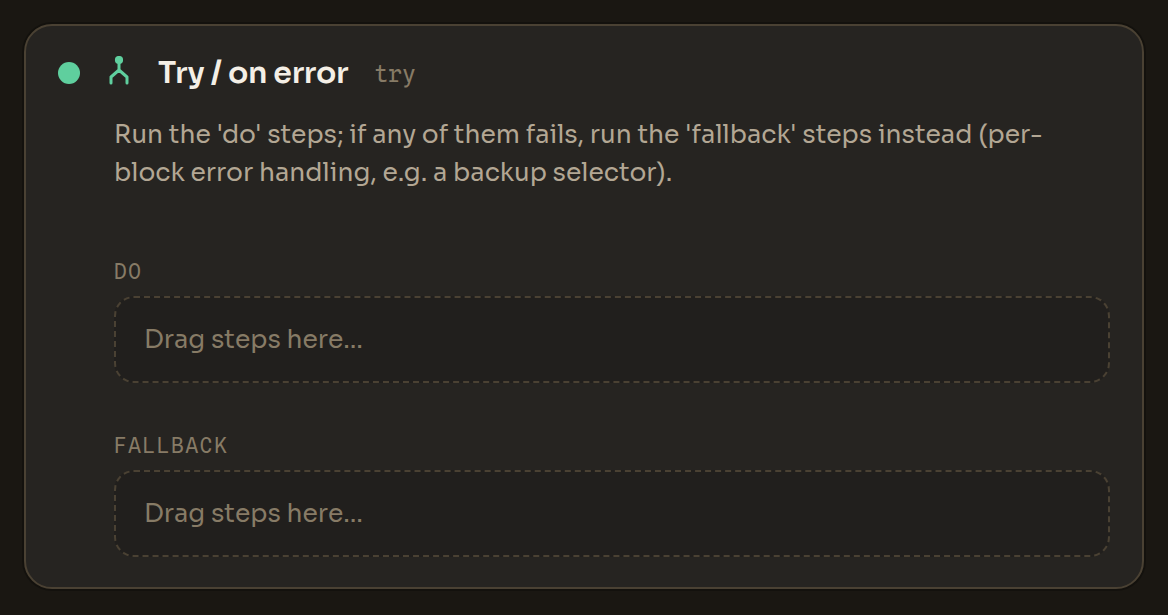
The Try / on error block in the Workflow Editor
Try / on error in the Workflow Editor
Control · control

While while

Repeat the steps while a condition holds (capped to avoid runaway loops).

condchoice required
one of a set of options — loop while this holds (params hold the condition value) (text_present, element_present, var_equals)
maxnumber
a number — iteration cap (default 1000)
{"while": {"element_present": "Next", "max": 50}, "do": [ … ]}
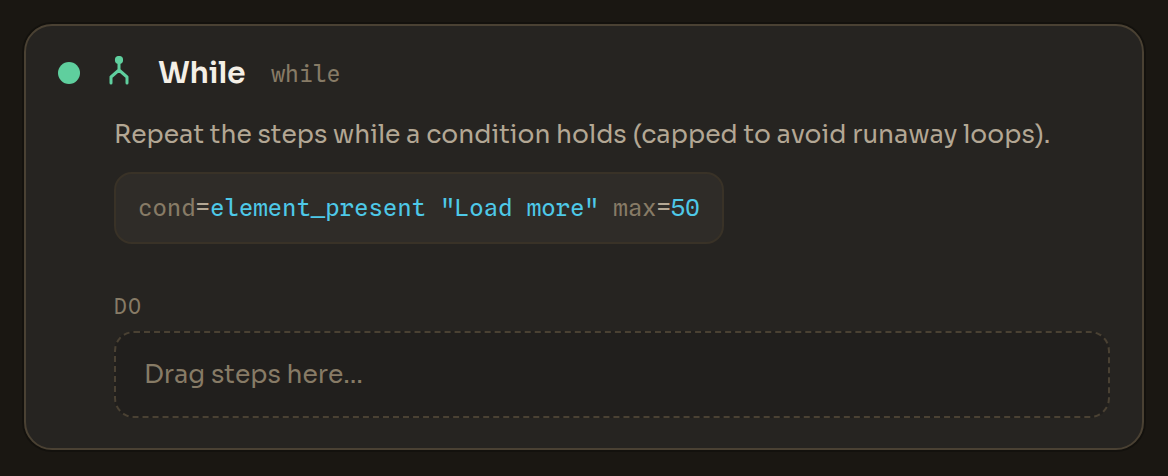
The While block in the Workflow Editor
While in the Workflow Editor
Control

Stop stop

Stop the workflow cleanly (not an error), with an optional reason.

reasontext
text — may include {{variables}}
{"stop": {"reason": "checkpoint detected"}}
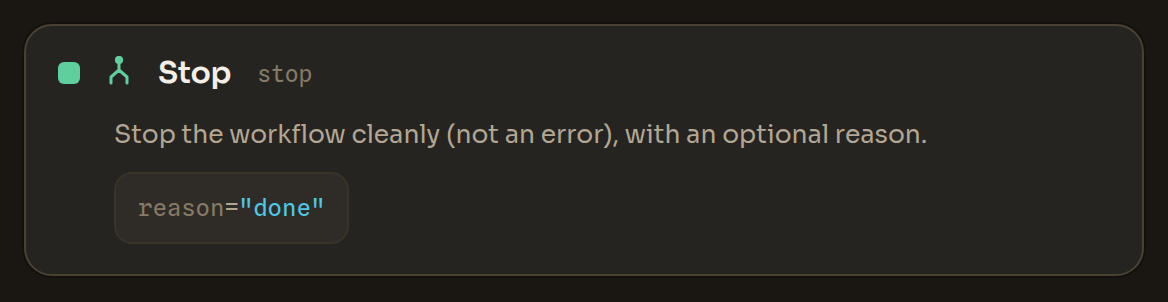
The Stop block in the Workflow Editor
Stop in the Workflow Editor
Control

Exit loop exit_loop

Break out of the nearest loop.

{"exit_loop": {}}

The Exit loop block in the Workflow Editor
Exit loop in the Workflow Editor
Control

Next loop next_loop

Skip the rest of this iteration and continue the loop.

{"next_loop": {}}

The Next loop block in the Workflow Editor
Next loop in the Workflow Editor
Control

Throw error throw

Stop the workflow with an error and an optional message.

messagetext
text — may include {{variables}}
{"throw": {"message": "unexpected page"}}
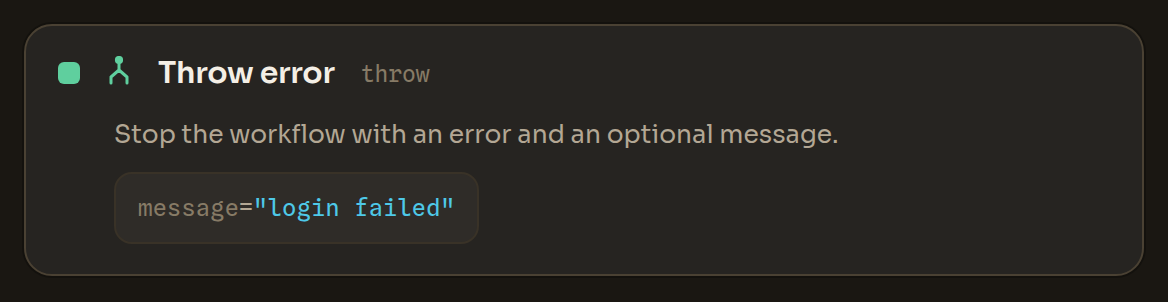
The Throw error block in the Workflow Editor
Throw error in the Workflow Editor
Control

Verify (checkpoint) assert

Verify a condition and stop the run with a clear reason if it is not met — a checkpoint that fails loud instead of letting the workflow keep running on a broken state (e.g. verify you are logged in, or that no captcha appeared, before going on).

thatchoice required
one of a set of options (present, absent, equals, contains)
texttext
text — may include {{variables}} — for present/absent (page text)
valuetext
text — may include {{variables}} — for equals/contains ({{var}} ok)
expectedtext
text — may include {{variables}} — for equals/contains
messagetext
text — may include {{variables}} — custom failure reason
{"assert": {"that": "present", "text": "Log out", "message": "not logged in"}}
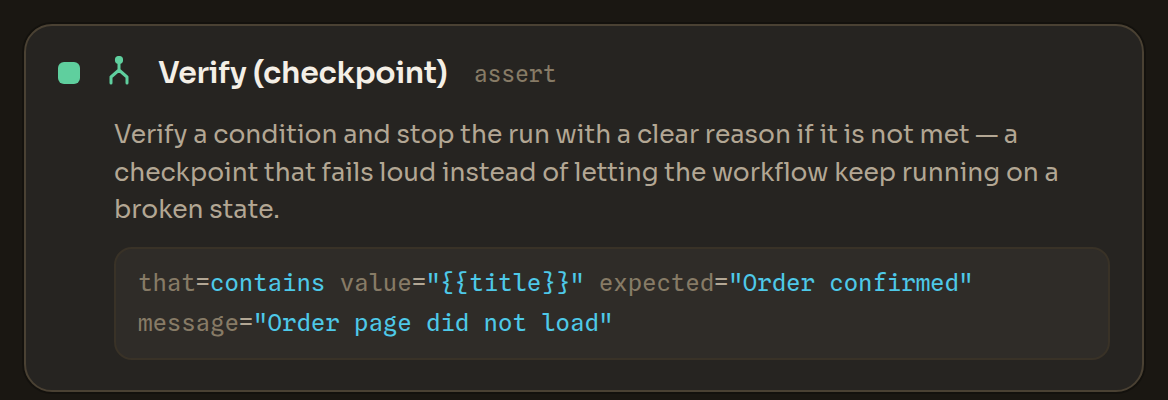
The Verify (checkpoint) block in the Workflow Editor
Verify (checkpoint) in the Workflow Editor

Dialog

Dialog

Accept dialog accept_alert

Accept a JavaScript dialog the page opened (alert/confirm/prompt).

{"accept_alert": {}}

The Accept dialog block in the Workflow Editor
Accept dialog in the Workflow Editor
Dialog

Dismiss dialog cancel_alert

Dismiss a JavaScript dialog the page opened.

{"cancel_alert": {}}

The Dismiss dialog block in the Workflow Editor
Dismiss dialog in the Workflow Editor

Proxy

Proxy

Rotate proxy IP rotate_proxy

Get a new IP for the profile's proxy port and wait for it (up to 60 s) before the next step.

waitnumber
a number — extra seconds to pause after the new IP is live
intovar
a variable name
{"rotate_proxy": {"wait": 5, "into": "new_ip"}}
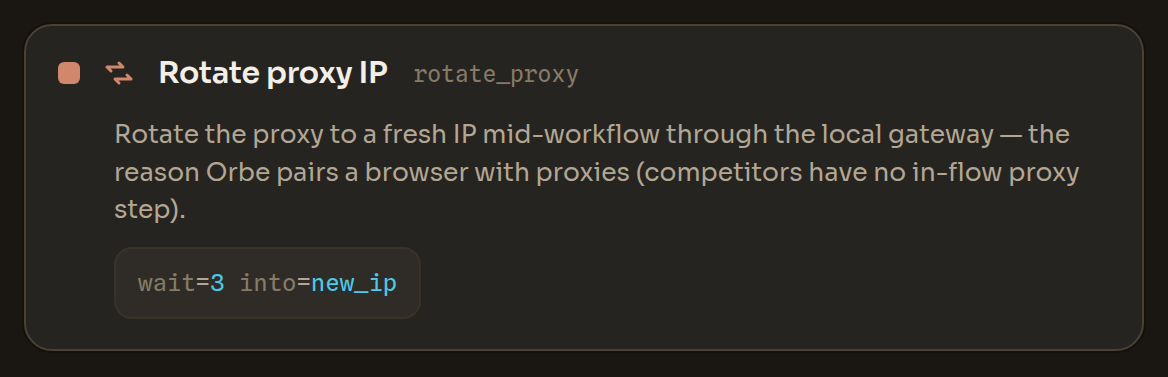
The Rotate proxy IP block in the Workflow Editor
Rotate proxy IP in the Workflow Editor
Proxy

Set proxy set_proxy

Point the profile at a different upstream proxy. Runs only in trusted workflows.

port_idtext
text — may include {{variables}} — one of your rented proxy ports (Proxy tab) — or fill host + port below
hosttext
text — may include {{variables}} — third-party proxy — up to 20 profiles per account
portnumber
a number
usertext
text — may include {{variables}}
passtext
text — may include {{variables}} — literal or {{var}} — trusted workflows only
{"set_proxy": {"host": "1.2.3.4", "port": 8080, "user": "u", "pass": "{{proxy_pass}}"}}
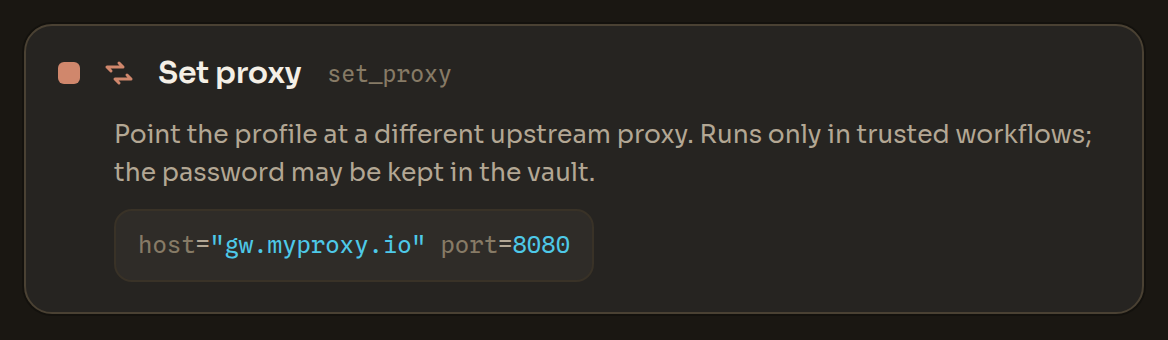
The Set proxy block in the Workflow Editor
Set proxy in the Workflow Editor

Network

Network

HTTP request http_request

Make an HTTPS request from the runner and store {status, headers, body}. Hardened against SSRF: https-only, resolved IPs are pinned and internal/private/metadata targets and Orbe's own ports are refused, redirects are re-validated each hop. Runs only in trusted workflows and sends no ambient cookies or credentials.

urlurl required
a URL — https:// only
methodtext
text — may include {{variables}} — GET (default)/POST/…
headersmap
a set of key: value pairs (e.g. request headers) — author-declared only
bodytext
text — may include {{variables}}
intovar required
a variable name — stores {status,headers,body}
timeoutnumber
a number
{"http_request": {"url": "https://api.example.com/item", "method": "GET", "into": "resp"}}
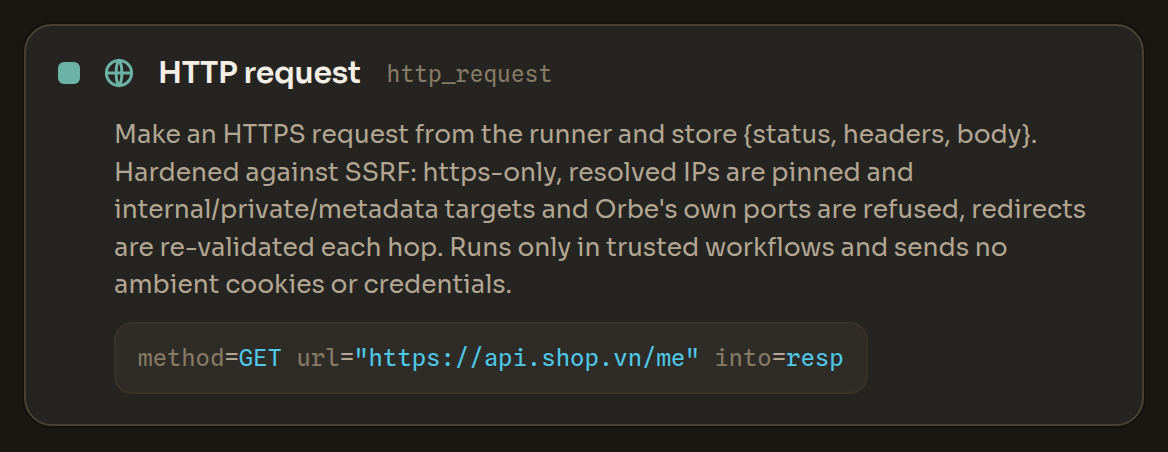
The HTTP request block in the Workflow Editor
HTTP request in the Workflow Editor

Build these visually in the Workflow Editor, or drive the same actions from code via the SDK & MCP.